Enterprise-Grade Batch Screen Mirroring Built for Android

Free Customization, farewell to high-priced customization barriers.
Your LOGO + Your Configuration, we help you implement it for free.
A brand new generation of Android batch management system. Are you ready to upgrade your device management model?
DIY your own software version online. Click the Customization Center to upload your Logo, fill in the software name and contact information to download your exclusive installation package.
Customize NowFeatures & Support
Enterprise Going Global
Cross-border Marketing
Efficiency Tool
Free Trial.
Batch Operation
AI Automation
Action Recording
ADB Commands

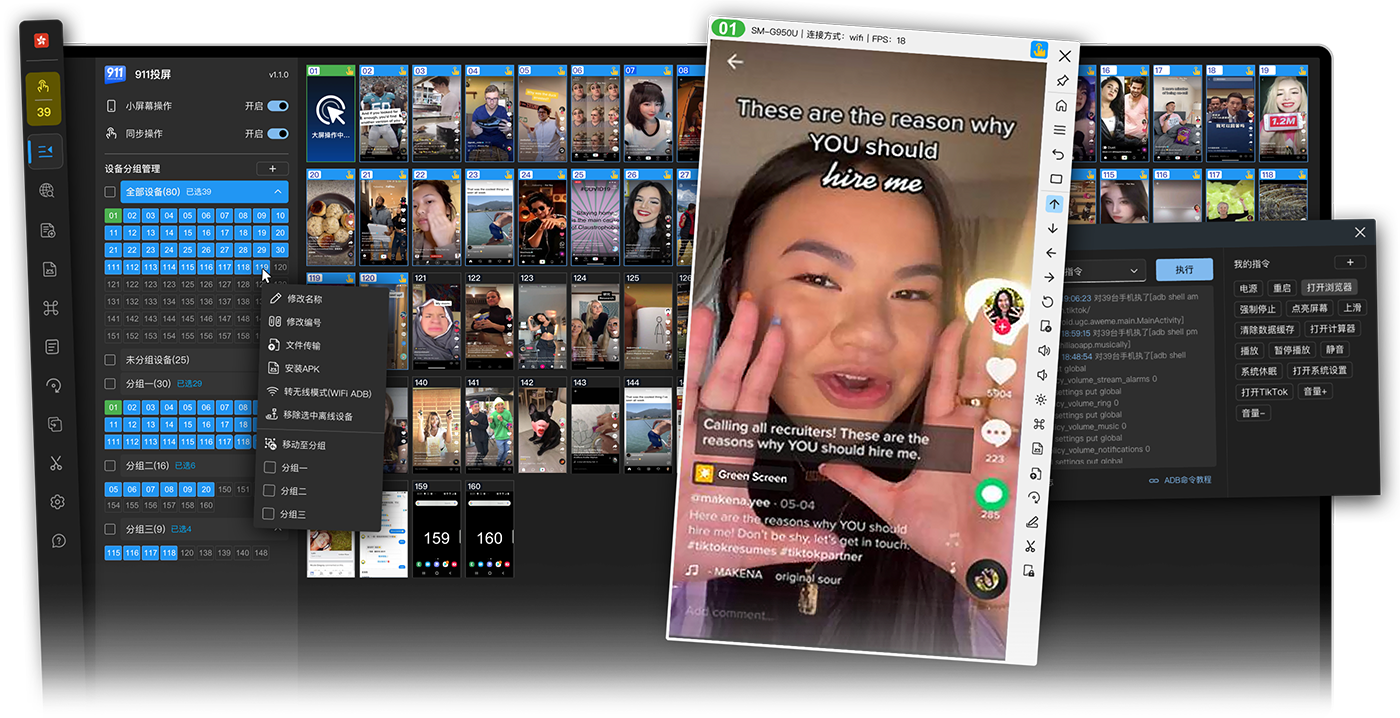
Built on FFmpeg/Scrcpy framework, more stable and smoother. Use one PC to manage hundreds of phones for batch sync operations, remote sharing, action recording, bulk upload, bulk install, text input, device grouping (one device in multiple groups), USB/OTG/WIFI connections, ADB commands, and more...

Batch Operation / Text Input / Copy & Paste
Simultaneously support hundreds of Android devices online with a smooth, lag-free screen. Input text, copy, and paste directly on the PC after connecting the phone. You can also reverse-copy phone text to paste on the PC. Easily distribute different copies to specific phones with one click.
File Upload / APK Install / App Management
Batch upload the same files or install APKs to multiple phones with one click. You can also bulk upload different file materials to designated phones. Supports common features like batch file transfer, app installation, data clearing, app uninstallation, and system updates. Complete multiple tasks with a single operation, greatly improving work efficiency.
AI Automation / Action Recording / ADB Commands
Send task prompts to AI and let it automatically complete the work for you. Supports recording mouse actions to replace repetitive mechanical work. Features custom and quick ADB commands to perform batch ADB operations on multiple devices by inputting commands or selecting quick options.
Remote Sharing / Remote Control
Supports P2P sharing of successfully PC-connected phones to other computers, improving collaborative office efficiency. Break geographical restrictions to easily share device resources. Shatter network boundaries to achieve deep interconnection of device resources.

A New Generation Android Automation Testing Base
Say goodbye to closed and cumbersome script ecosystems! 911 Screen Mirroring provides a standard WebSocket API interface, a common and universal API interface over the HTTP protocol. With just a few lines of code, you can integrate with AutoHotkey, Easy Language, C++, Python, HTML, Vue, Node.js, Java, or any other language to achieve full-link automation testing, from app launch, click & swipe, to precise text input.
View API Development DocsGenuine User Reviews
What do they have to say about using 911 Android Screen Mirroring.

"I have experienced several similar products, and 911 Android Screen Mirroring has the most optimal features. Besides smooth, lag-free basic batch phone operations, it also boasts ADB commands and script recording functions that other similar products lack. It is very handy to use, and there is even a technical team to provide guidance and help, which is extremely friendly for users with script needs."


"As a veteran user, I used other similar products during this period, but 911 is still relatively outstanding in terms of performance, user experience, and cost-effectiveness. The occasional device connection lag was quickly resolved by tech support after providing feedback; the technical service is very fast. Meanwhile, in terms of feature comparison, the ADB and AI functions are very convenient."

"I came for the AI automation feature, and later the newly added device sharing feature arrived just in time!"

"There are only a few batch mobile control software options out there, and 911 is considered one of the excellent ones, and seemingly one of the earliest. I love its device sharing feature, as well as the AI automation tasks. The subsequently added tools corresponding to foreign social apps are also very easy to use. It’s perfect for target users like me in cross-border e-commerce."

Frequently Asked Questions
Some questions about Android screen mirroring group control.
After enabling USB debugging in Developer Options, you can connect to the computer via USB data cable, WiFi ADB, OTG, etc. If the computer lacks enough USB ports, you can connect via a USB hub.
The software does not limit the number of connections; how many devices you can connect is determined by your computer's motherboard or router performance. 1. The motherboard of an ordinary home PC theoretically supports a maximum of 127 USB connections, but most motherboard manufacturers limit this to 40. Therefore, typically, a home PC can only connect up to 40 devices. 2. Commercial server motherboards usually adopt the X79 architecture, which has no limit on USB connections, making it theoretically infinite. 3. How to connect more devices: Please try plugging the data cables into the USB ports on the back of the computer. For USB 2.0 ports (black, not blue), in the motherboard BIOS: Disable Xhci / Enable EHCI.
Huawei or Honor phones require downloading the corresponding mobile assistant from their respective official websites (ignore for other brands). Huawei HiSuite: https://consumer.huawei.com/cn/support/hisuite/ Honor Suite: https://www.honor.com/cn/tech/honor-suite/ 1. Install the mobile assistant on your computer. 2. Successfully connect the phone and the assistant using a USB data cable (the assistant has connection tutorials). 3. The assistant will push the Huawei or Honor phone driver to the phone; click to install. 4. After a successful driver installation, close the mobile assistant and reconnect the USB cable. 5. If it still doesn't work, please try restarting the phone. 6. Afterward, uninstall the mobile assistant to avoid conflicts.
You need to enable USB debugging as well as USB debugging (Security settings).